
Diane for Mac
Dictate into any app on your Mac.
Diane lives in the menu bar. Press ⌃⌥Space (Control-Option-Space), speak, press it again, and the text lands where your cursor is: in Word, Mail, Notes, Slack, your browser or any other app.
Install
- Open the downloaded Diane-0.1.6.dmg (usually in your Downloads folder). The first time, macOS blocks it: follow Round 1 below.
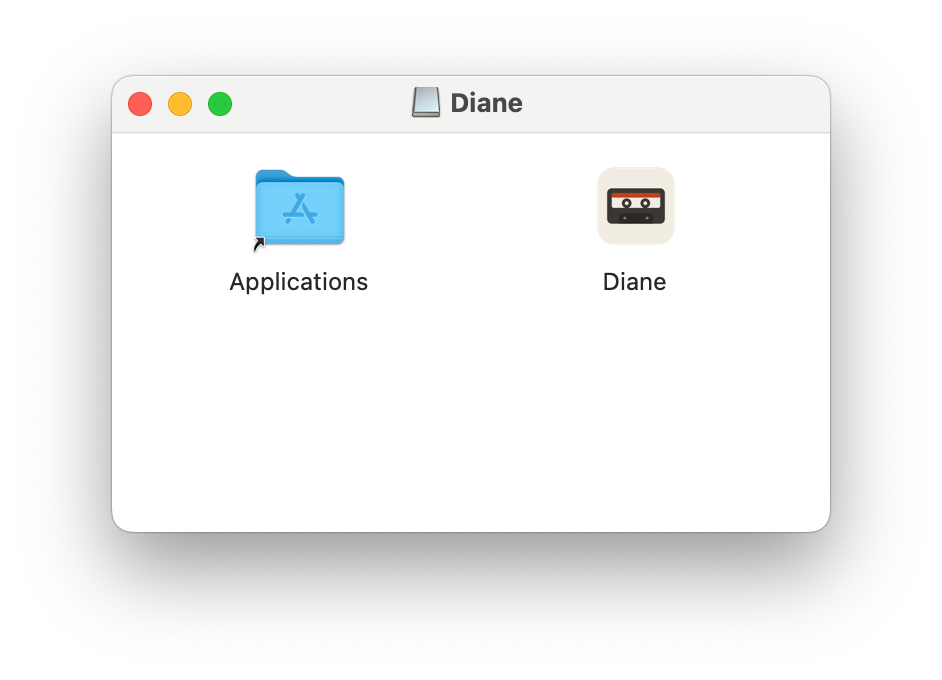
- Drag Diane onto the Applications folder in the window that opens.
- Open Diane from Applications. macOS blocks it once more: follow Round 2 below.
- Eject the Diane disk in Finder's sidebar. You can delete the .dmg afterwards.
Updating works the same way: quit Diane from its menu, drag the new version into Applications and choose Replace. Your permissions stay in place.
Open it the first time
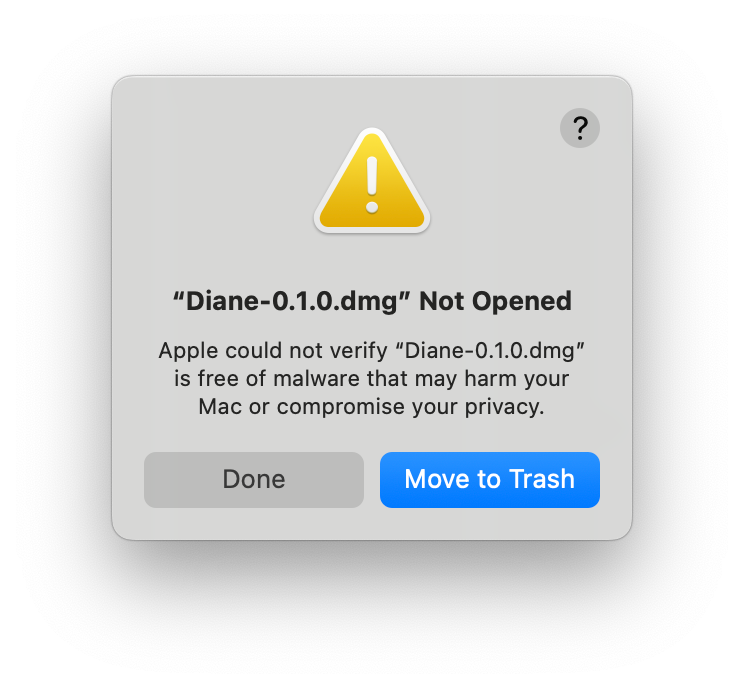
Diane is not yet notarised by Apple, so macOS asks you to confirm twice: once for the installer file (Diane-0.1.6.dmg), then once for the Diane app itself. Both times it says it could not verify that it is free of malware. This is expected, and both times you approve it the same way.
The screenshots below were taken with version 0.1.0, so they show Diane-0.1.0.dmg. Yours says 0.1.6; everything else looks the same.
Round 1: the installer file
- Double-click Diane-0.1.6.dmg. When the warning appears, click Done (not Move to Trash).
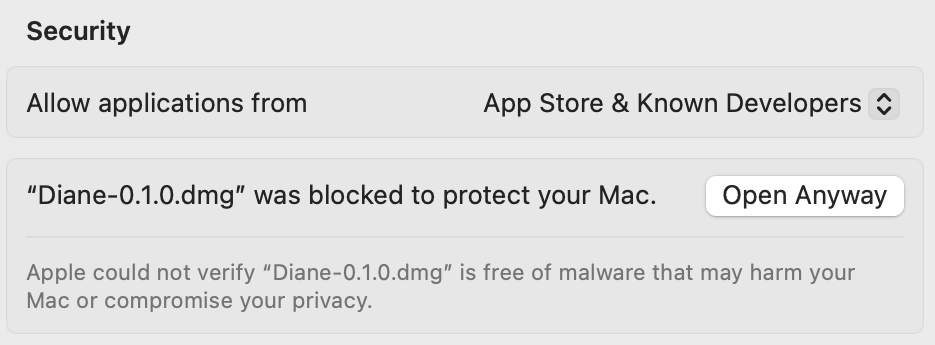
- Open System Settings → Privacy & Security and scroll down to Security. Next to "Diane-0.1.6.dmg" was blocked to protect your Mac, click Open Anyway and confirm with your password or Touch ID.
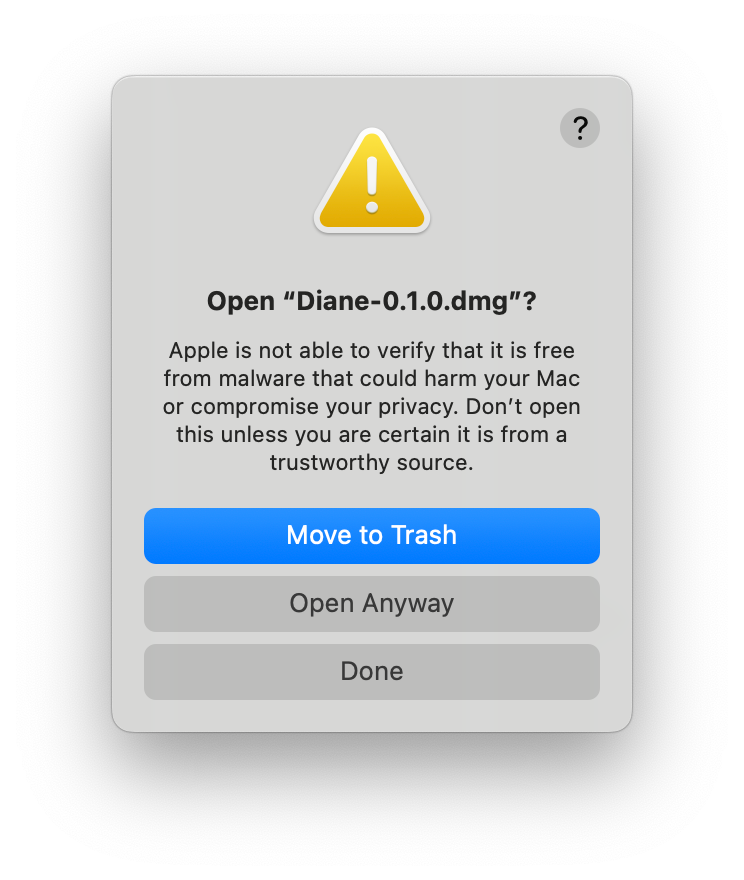
- macOS asks once more. Click Open Anyway.
- The Diane window opens. Drag Diane onto Applications.
Round 2: the Diane app
- Double-click Diane in Applications. The same kind of warning appears, this time for "Diane". Click Done.
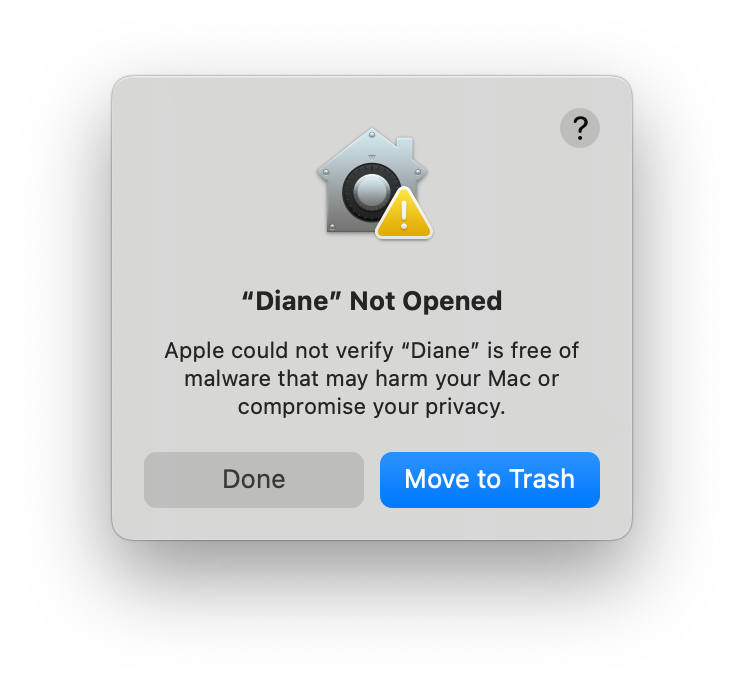
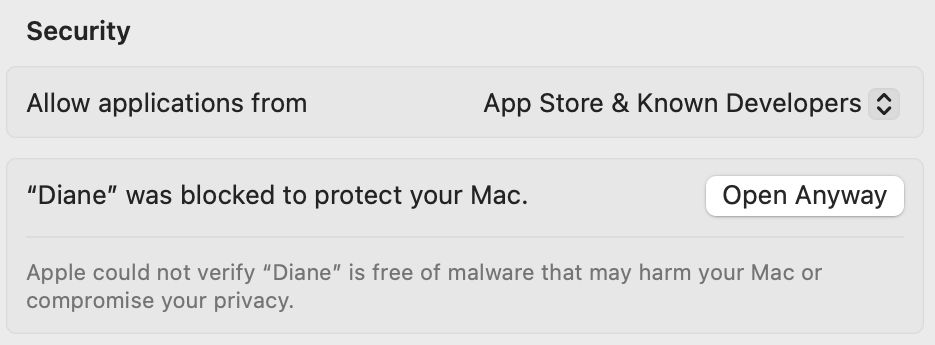
- Back in System Settings → Privacy & Security → Security, next to "Diane" was blocked to protect your Mac, click Open Anyway and confirm.
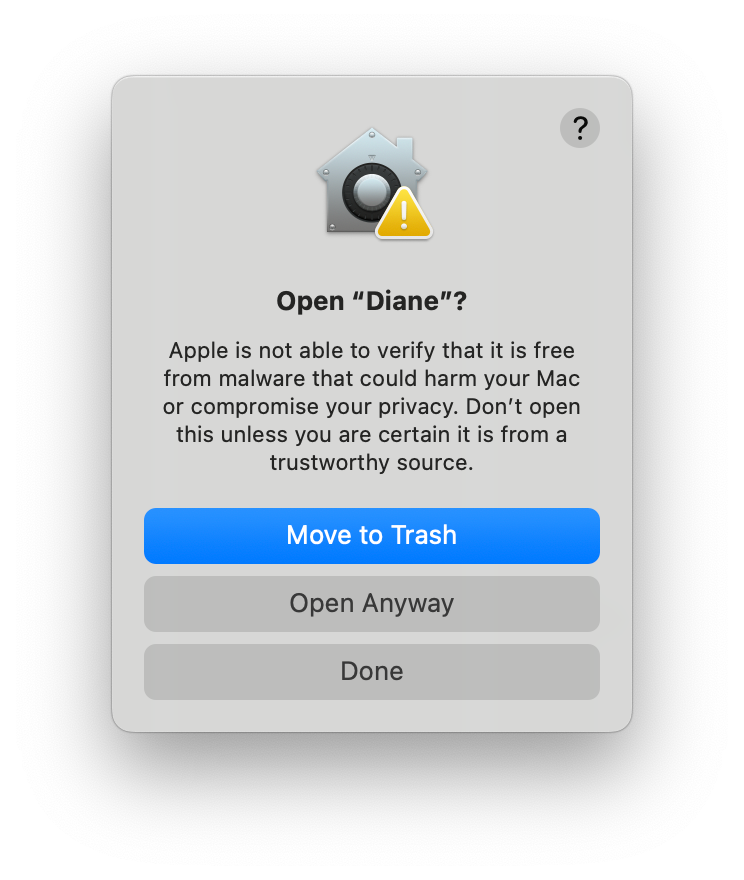
- Click Open Anyway in the last dialog. Diane starts and its cassette icon appears in the menu bar.
macOS remembers both approvals, so you only do this once per version.
Permissions
macOS doesn't let any app, installer included, grant itself these permissions. You switch them on once, and Diane points you to the right place. On first launch it opens its Settings window with a Permissions list showing what's still missing. Click a row to jump to the matching page in System Settings.
Microphone (required)
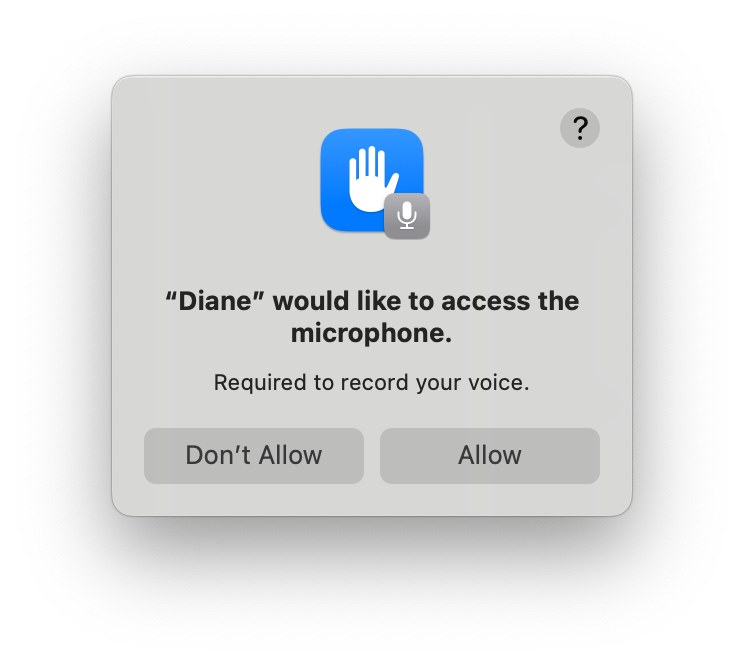
The first time you dictate, macOS asks "Diane" would like to access the microphone. Click Allow. Diane only listens between your start and stop.
Accessibility (to type into other apps)
This lets Diane put the text where your cursor is. Without it, Diane still transcribes, and the text waits in a bubble for you to copy.
- On first launch, macOS shows "Diane" would like to control this computer using accessibility features. Click Open System Settings. (Later, you can also click the Accessibility row in Diane's Settings.)
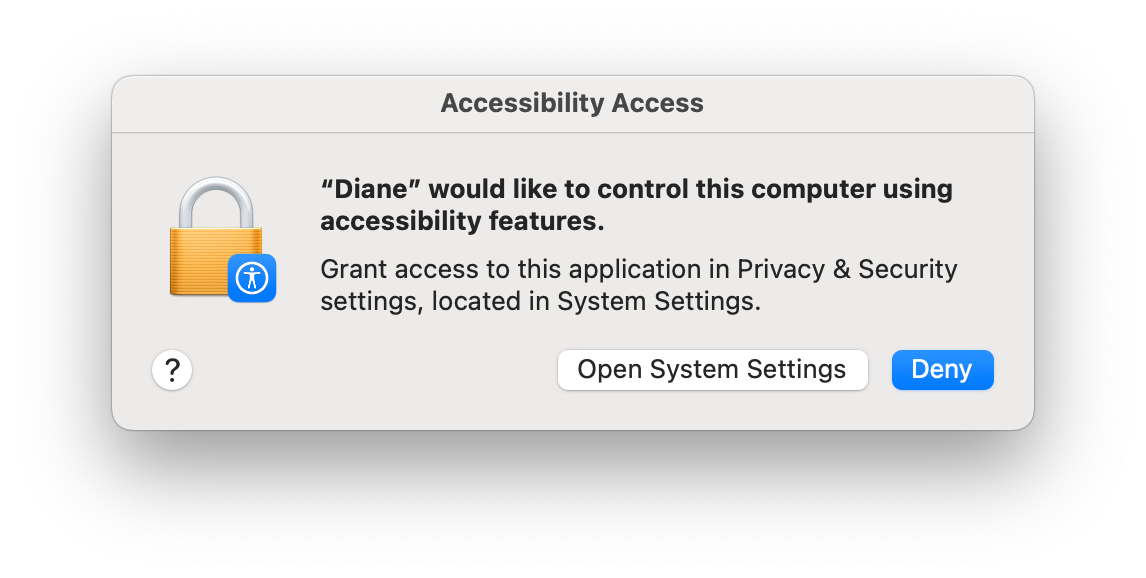
- Diane is already in the Accessibility list. Turn on the switch next to it. Within a couple of seconds Diane restarts by itself, once, so the new permission takes effect, and comes back with its Settings open.
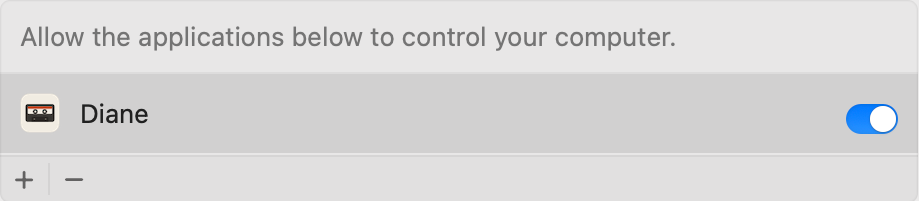
- If Diane isn't in the list, click + at the bottom, choose Applications → Diane and click Open. Then turn the switch on.
Input Monitoring (only for hold-to-talk shortcuts)
You need this only if you change the shortcut in Diane's Settings to hold Fn or hold ⌃⌥. The default ⌃⌥Space doesn't need it. Turn on Diane under System Settings → Privacy & Security → Input Monitoring, the same way as Accessibility.
Dictating
- Click into the place you want to type: a document, an email, a chat box.
- Press ⌃⌥Space. If you prefer clicking, turn on the on-screen microphone in Diane's Settings and click it instead.
- Speak. Live words appear in a small bubble near your cursor.
- Press ⌃⌥Space again to stop. The final text is typed in. After half a second the bubble turns half-transparent, so you can read what's under it, and then fades away. Hover over it to make it solid again, click it to copy the text, or click × in its top-right corner to close it.
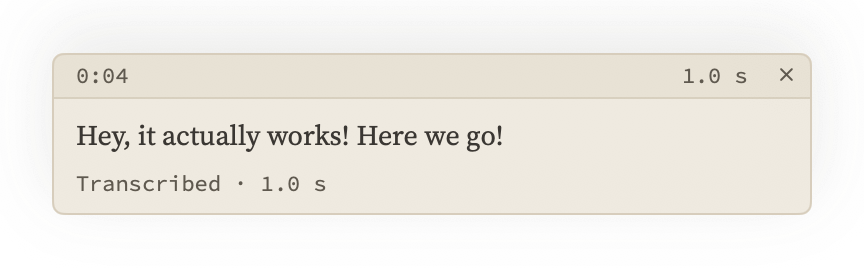
Longer dictations into a document or a multi-line box arrive split into paragraphs. In Microsoft Word, words Diane is unsure about are highlighted for you to check.
Settings worth knowing
- Languages. Diane starts with your Mac's language, if it supports it, plus English. Add or remove languages (up to three) in Diane's Settings.
- Start Diane on sign in is on, so Diane is ready in the menu bar whenever you log in. The first time, macOS shows a notice that Diane added a background item. That's this setting. Turn it off in Diane's Settings, or under System Settings → General → Login Items.
- Touch Bar button is on, on Macs with a Touch Bar. The on-screen microphone is off. Turn it on in Settings if you like to click.
Troubleshooting
The text stays in the bubble instead of being typed in
Accessibility is off for this copy of Diane. Open Privacy & Security → Accessibility. If Diane is listed and on, it may be an entry for an older copy: select it, click − to remove it, then add Diane again with + from your Applications folder and turn it on.
Nothing happens when I press ⌃⌥Space
Another app may use the same shortcut. Pick a different one in Diane's Settings, under Shortcut, or turn on the on-screen microphone and click it instead.
"Diane is damaged and can't be opened"
The download was interrupted or damaged. Delete it, download it again from the button above and repeat the steps.
In Chrome or the Claude app, the text appears a moment later than elsewhere
Some apps built on Chrome only expose their text fields after Diane asks for them, so the first dictation in a fresh window can take a second longer. If the cursor isn't in a text box, the text stays in the bubble for 7 seconds so you can click it to copy.
Updates
If Diane shows Diane needs an update to keep working, the server has moved on to a newer version. Click Get the update, or ask the person who shared Diane with you for the new .dmg, and install it over the old one as described above.
Reset, remove your data, or uninstall
Reset permissions
At the very bottom of Diane's Settings, Reset permissions… removes Diane's Microphone, Accessibility and Input Monitoring permissions and quits Diane. The next time you open it, macOS asks again. Your dictations and settings stay.
Remove your local data
Quit Diane from its menu first. Then, in Terminal, this deletes your dictations, recordings and settings for good:
rm -rf ~/Library/Application\ Support/Diane ~/Library/Caches/ad.yak.diane.mac ~/Library/HTTPStorages/ad.yak.diane.mac && defaults delete ad.yak.diane.macUninstall
- Click Reset permissions… in Diane's Settings (this also quits Diane). Or remove Diane yourself under System Settings → Privacy & Security (Microphone, Accessibility, Input Monitoring) with −.
- Optionally remove your local data as above.
- Drag Diane from Applications to the Bin. Its sign-in item goes away with it.
Privacy
The Mac app sends your audio, encrypted, to Diane's own server for transcription, the same as the web app. Nothing is kept on the server. Your dictations and their audio stay on your Mac, and you can delete them at any time from Dictations in Diane's menu bar menu. See Confidentiality.